


Image upscaling
Turn low-resolution assets into clearer images that are better suited for continued design work.
Preview


After an image becomes clearer, continue generating new scenes, removing backgrounds, or creating reference images.
Upload an image and let FlashOmni improve detail and clarity. It is suited to turning old assets, product images, cover drafts, or content visuals into a more publishable state.
Turn low-resolution assets into clearer images that are better suited for continued design work.
Upload a product image, poster, profile image, screenshot, or old asset to start.
Results are saved to generation history for download, comparison, and follow-up editing.
Image upscaling helps recover the usability of low-resolution assets: improve detail first, then use the result for product pages, ads, covers, presentations, or video first frames.
No prompt is required. Upload an image and submit a clarity-improvement task directly.
Make edges, textures, text areas, and subject outlines clearer, reducing the cheap feel caused by low-resolution assets.
Use it as the final cleanup step for product images, covers, posters, blog visuals, presentation graphics, and landing-page visuals.
Check the estimated credits before submitting so you can prioritize batch asset processing.
Completed high-resolution images enter history so you can download, compare, or reuse them later.
After upscaling, continue with background removal, reference-image generation, layout compositing, or video first-frame preparation.
When the image direction works but clarity is not enough, upscale first before publishing, layout work, compositing, or review.
Make low-resolution product images, older assets, or screenshots clearer and reduce blur before they enter product pages or ad layouts.
Make product outlines, materials, and local details easier to see.
Upscaled assets fit better into posters, detail pages, covers, and display images.
Before downloading, check whether text, edges, textures, and compression marks are acceptable.
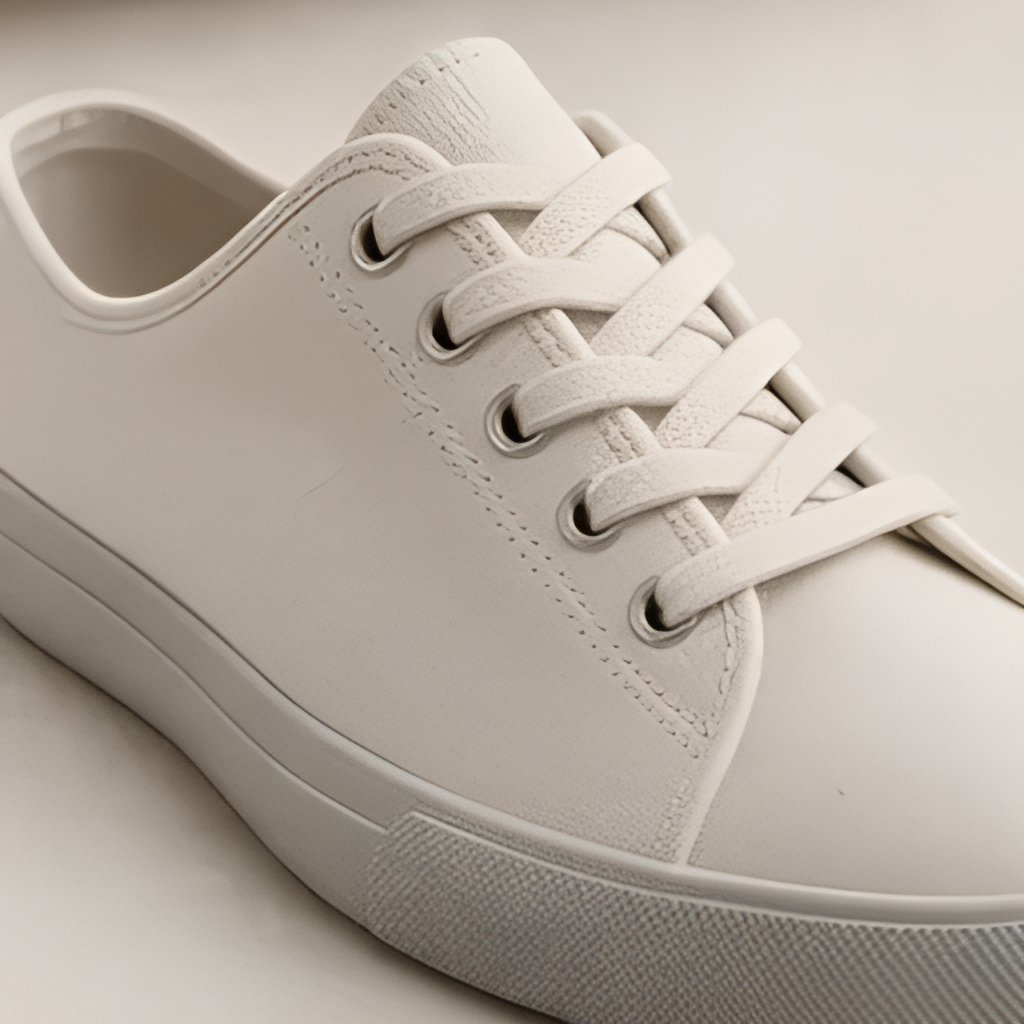

Improve the clarity of cover drafts, campaign graphics, or content visuals so they are more suitable for display.
Make the subject, title area, and visual focus clearer in thumbnails.
Bring images from different sources closer to the same clarity level.
When the original size is not enough but the direction is right, upscale first and continue designing.


Improve image quality first, then use it as a reference image, background, subject asset, or video starting frame.
Make source images clearer for later compositing or video generation.
After upscaling, continue removing backgrounds, generating scenes, or creating reference images.
The high-resolution version is saved in history for repeated use.


Choose a product image, cover, screenshot, profile image, or old asset.
After confirming the image, start processing. The system improves resolution and detail rendering.
Check edges, text, textures, and overall clarity, then download or continue editing.
Image upscaling improves the clarity and resolution of an uploaded image, suitable for low-resolution product images, covers, posters, screenshots, and content visuals.
Yes. Image upscaling depends on a source image. Upload an image with a clear subject, moderate compression, and as much size as possible.
Generated results are saved in your FlashOmni generation history, where you can view or download them after completion.
Commercial use depends on provider terms, your inputs, rights, trademarks, likenesses, and publishing context. Review every output before final use.
Upload an image, improve clarity and detail, and use it for product images, covers, posters, content visuals, and follow-up composites.