
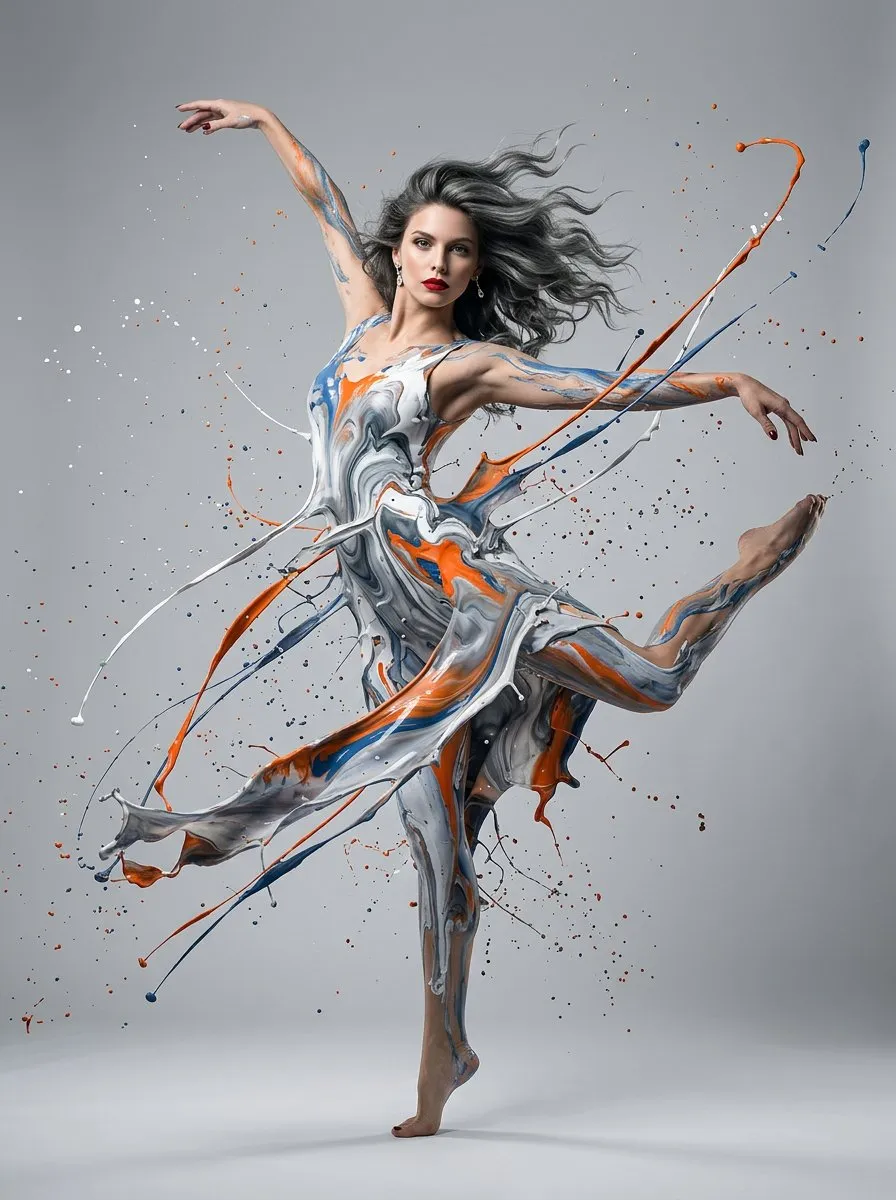
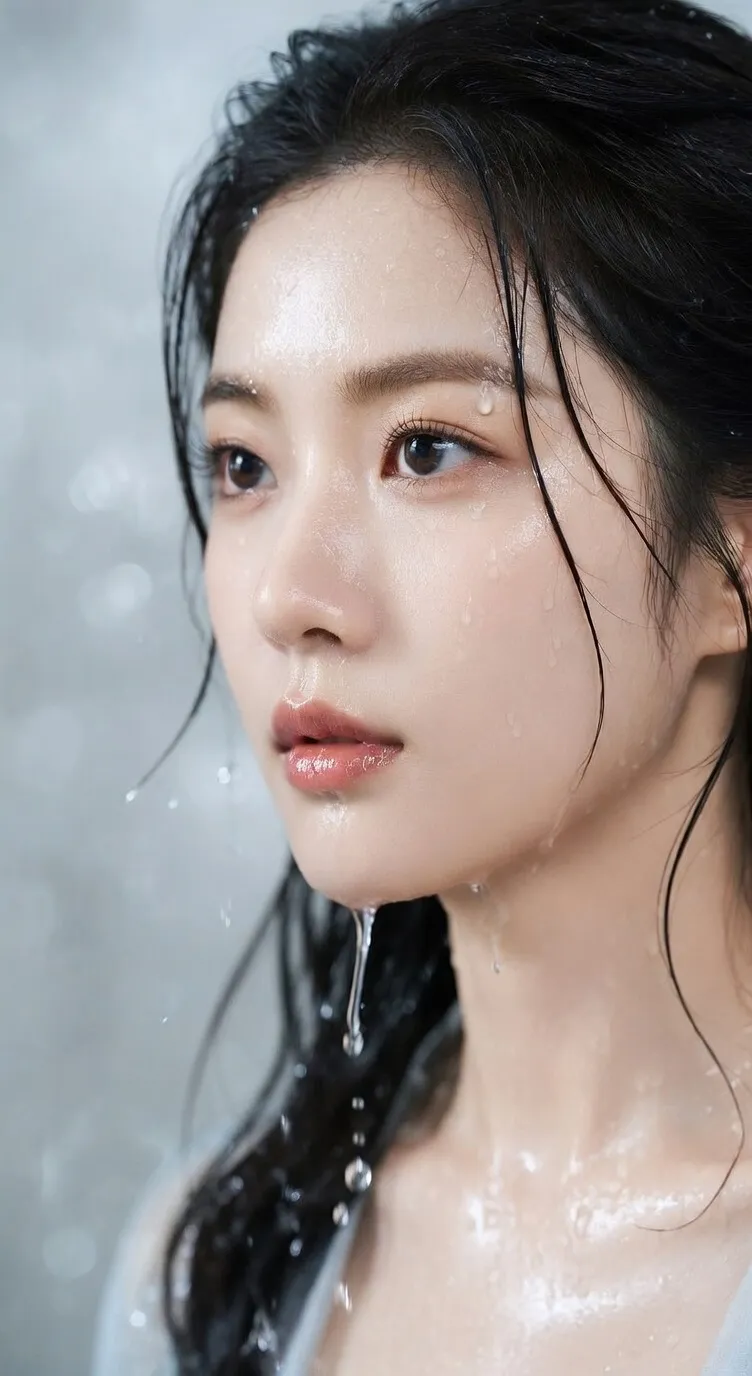
Image task
First decide whether the task is generation, reference-image editing, background removal, or image upscaling.
Preview
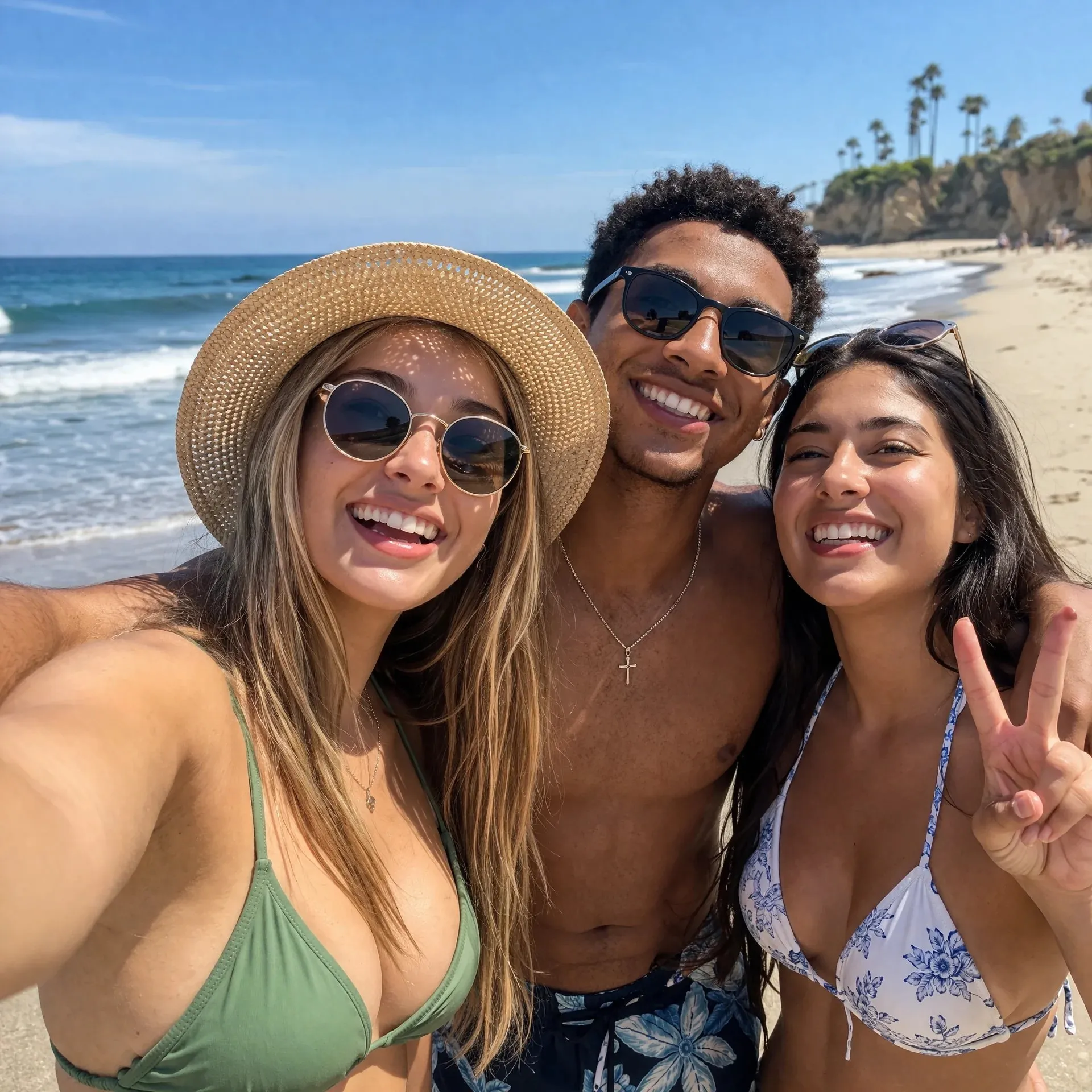
After image generation, continue removing backgrounds, improving clarity, or send key frames to video models.
FlashOmni Image helps you decide how to handle the current image task: generate a new image from text, edit around references, create product or ad layouts, cut out a subject, upscale a low-resolution image, or prepare a still for a later video first frame.
First decide whether the task is generation, reference-image editing, background removal, or image upscaling.
Use text to explain goals and constraints, and upload source or reference images when consistency matters.
Prepare assets for product pages, ads, covers, explainers, presentations, and video first frames.
Do not force every image request into one blank prompt box. First identify the task type: generate a new image, edit from references, improve clarity, remove the background, or prepare a static first frame for video.
Clarify the deliverable first: product image, ad concept, poster, explainer, cover, infographic, mockup, or source asset.
Use product images, portraits, sketches, UI screenshots, or brand samples to lock subject, layout, material, and style direction.
Pick between GPT Images 2.0, Nano Banana 2, Seedream 5 Lite, or image tools based on detail, speed, references, text layout, and cost.
Move the first image version toward product-page visuals, campaign graphics, landing-page images, content covers, and presentation assets.
Before external use, review text, marks, product details, people, hands, promotional claims, rights, and brand rules.
When an image direction works, use it as a first frame or reference image for a short video draft.
Treat the image page as an asset-routing entry: choose the right model or tool first, then generate, edit, cut out, upscale, or continue finishing the result.
Turn a product idea, campaign information, article topic, or cover direction into the first set of image options.
State whether you need a product scene, ad image, poster, cover, explainer, infographic, or concept image.
Add subject, audience, channel, composition, lighting, style, aspect ratio, text, and constraints.
After generating several versions, keep the one with stronger layout, subject performance, and production fit.
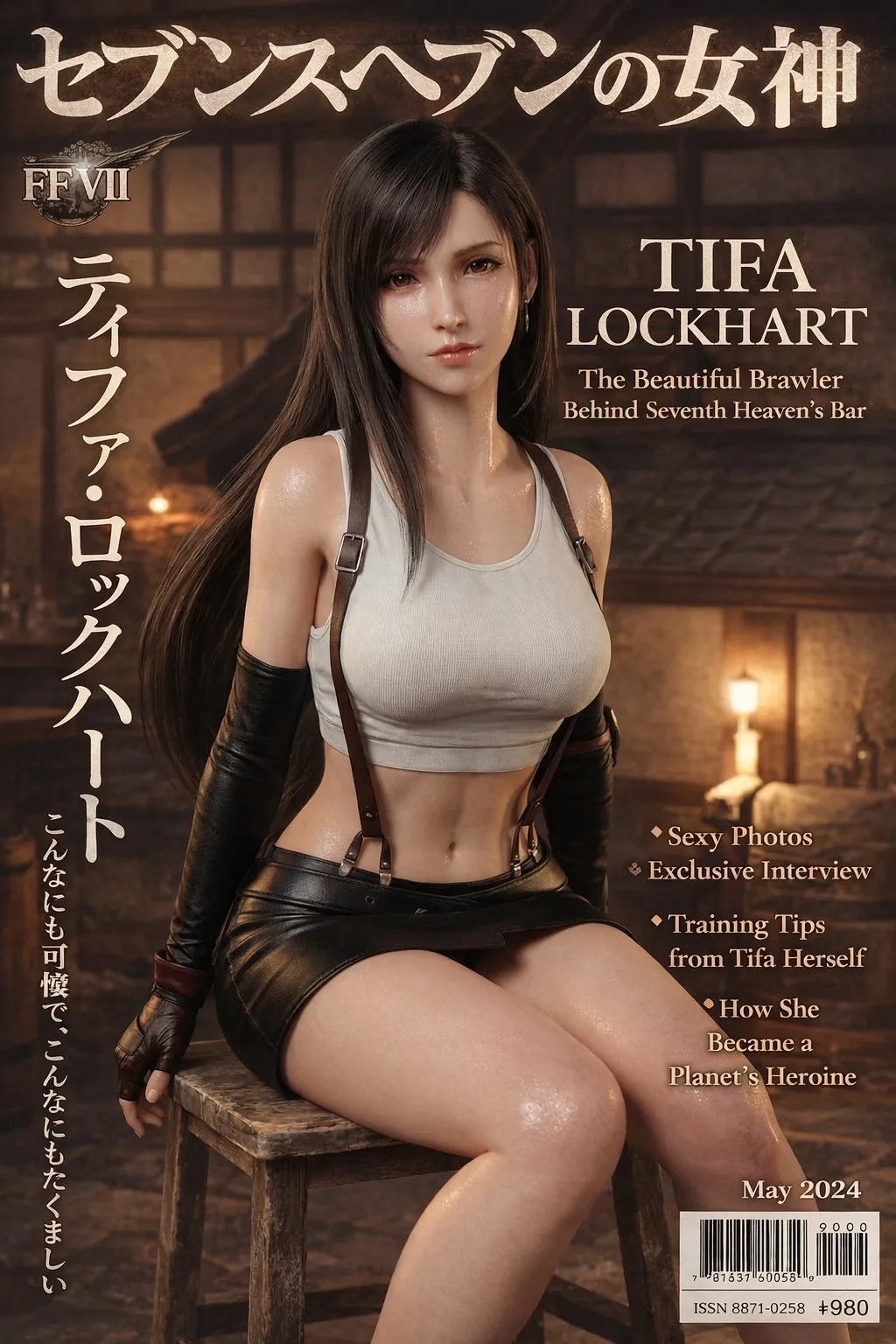
Use product images, portraits, UI screenshots, sketches, or style samples to preserve key details while changing the output.
Keep product shape, person identity, material, color palette, layout, or brand cues recognizable.
Say whether to change background, crop, lighting, text area, composition, or visual tone to avoid accidental subject edits.
Continue adjusting background, text area, color, subject placement, and visual hierarchy without rebuilding from zero.
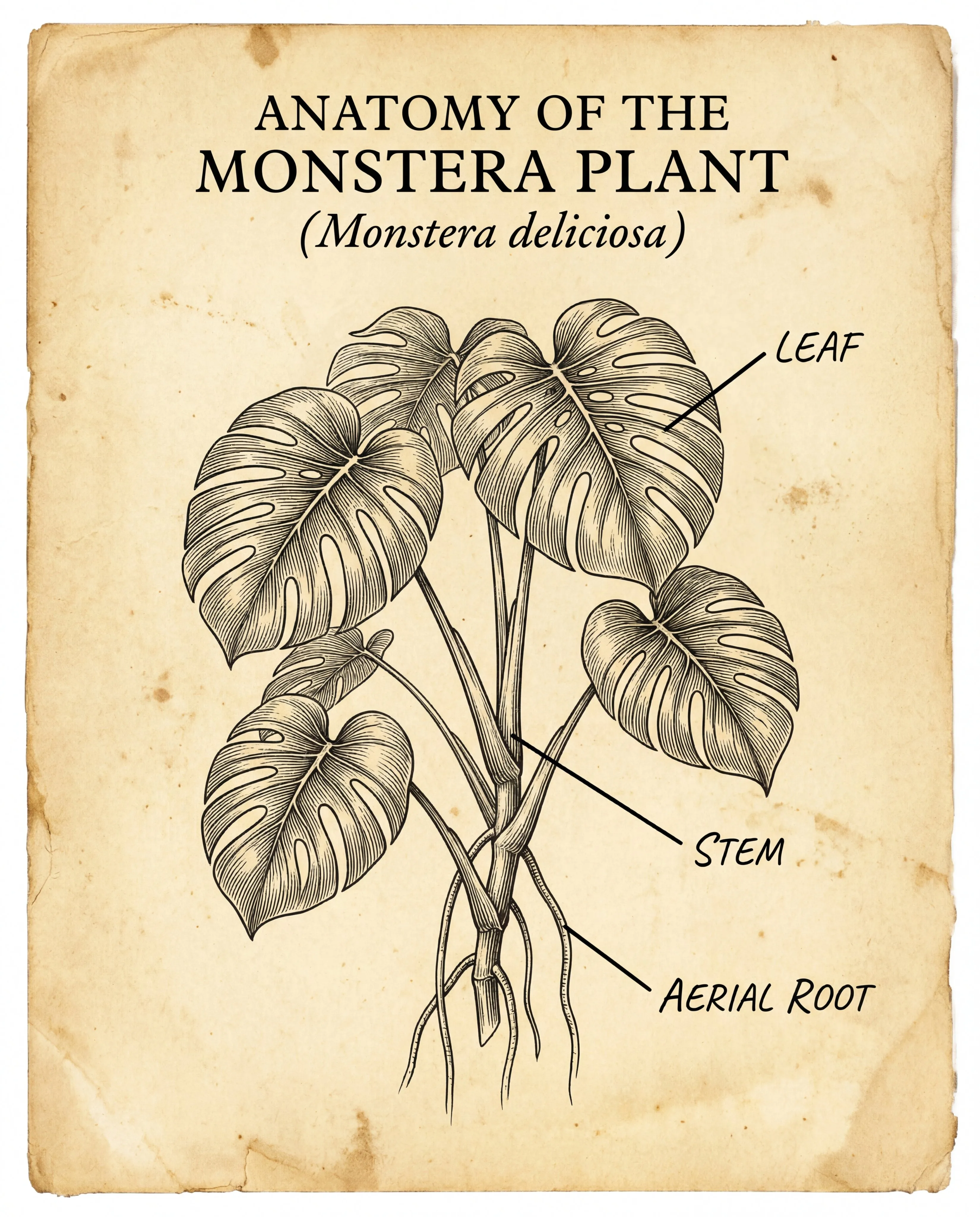
Do final preparation for product pages, ads, covers, blog visuals, presentations, and localized campaign assets.
Plan square, vertical, horizontal, cover, poster, and banner versions based on where the image appears.
Remove backgrounds, upscale low-resolution images, or regenerate cleaner versions with references when needed.
Before publishing, check text, logos, product details, likenesses, claims, rights risks, and brand rules.
Decide whether you need a new image, reference edit, cutout, upscaling, or a still image for a video first frame.
Describe purpose, audience, subject, scene, composition, text, and constraints. Upload references when subject or brand consistency matters.
Compare versions, check details and text, then continue with cutout, upscaling, download, or video generation.
It helps you choose the right model or tool for image generation, reference-image editing, background removal, image upscaling, and pre-publish asset finishing.
Yes. Start from text when exploring a new direction; upload an image as a reference when product shape, person identity, layout, or style must be preserved.
Include asset type, audience, subject, scene, style, composition, lighting, aspect ratio, required text, constraints, and placement.
No. It is better suited to practical assets: product images, ads, content covers, posters, explainers, mockups, illustrations, and reference images.
Use depends on platform terms, input assets, trademarks, likenesses, copyright references, regulated claims, and publishing rules. Check rights and content risks before commercial use.
Choose an image model or tool, write a clear brief, add references when needed, and prepare assets for products, ads, covers, explainers, and video first frames.